Work a Project
The center of the app — 22 tabs on one record, grouped into 6 categories. This guide orients you across all of them; several have their own dedicated, deeper guide linked below.
Creating a Project
Standalone, not converted from anything
New Project on the Projects list. Only Project Name and Origin Date (defaults to today) are required — everything else, including Organization, Primary Contact, Category/Type, and Status, can be filled in later.
Two ways to browse the Projects list
Toggle at the top of the Projects page between a plain List view and a Timeline (Gantt-style "Job Board") view. A separate Kanban View page exists too.
The 16 tabs, at a glance
Several have their own deeper guide — go there for real depth
| Tab | Where to go deeper |
|---|---|
| Project details | |
| Project | covered below — the record itself |
| Dashboard | covered below |
| Resources | covered below — read this one |
| Notes | a plain notes log — nothing further to document |
| Communications | Sending Email/SMS |
| Attachments | All Attachments (project-scoped view of the same thing) |
| Addresses | extra addresses beyond the primary — self-explanatory |
| Checklists | Checklists & My Tasks |
| Custom Fields | Add a Custom Field |
| Estimating | |
| Estimates | Build an Estimate |
| Allowances | a line on an accepted Estimate flagged as a placeholder budget — no Add button, it comes from the Estimate itself |
| Proposals | covered below |
| Procurement | |
| Lien Waivers | Lien Waivers |
| Vendor Quotes & POs | Vendor Portal Workflow |
| Financials | |
| Budget | Project Budget |
| Invoices & Payments | Invoicing, Payments & Credit Memos |
| Commissions | Commissions & Referral Payouts |
| Expenses | Expenses |
| Execution & compliance | |
| Schedules | covered below |
| Warranty | covered below |
| Permits | Permits |
| History | |
| Status History | every status change and who made it, recorded automatically — nothing to set up |
2026-10-19: the Project dialog groups these tabs into 6 top-level groups instead of one flat row, like the table above.
Resources — the access-control hub, not just a contact list
Portal access is a two-step, two-screen thing
Giving someone a Portal login happens on their Contact record (Create Portal Access). But having a login doesn't mean they can see this Project — that's controlled separately, right here on the Resources tab, per Project. Each resource has checkboxes: Is Client, Is Vendor, Is Signatory, Can Access Project, Client Visible, Vendor Visible.
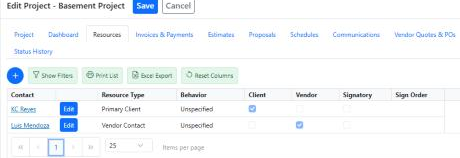
Each contact only gets one resource row, and Resource Type picks the shape of that row — here, Primary Client for the project's main client contact and Vendor Contact for someone on the vendor side. Clicking Edit on a row opens the actual checkboxes:
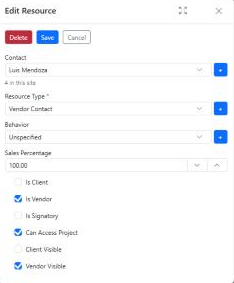
Is Signatory also drives eSignature order
Is Signatory plus a Sign Order value controls the sequence people are routed through for the built-in eSignature flow — not just a label.
Dashboard, Proposals, Schedules
Dashboard tab ≠ Projects Dashboard page
Don't confuse this Project's own Dashboard tab (a per-project activity/key-facts snapshot) with the separate, company-wide Projects Dashboard page in the side menu (pipeline/cash flow across every Project).
Proposals and Schedules
Proposals holds the actual proposal documents for this Project (link one or more Estimates to a Proposal — see Build an Estimate for how that connection works). Schedules holds this Project's timeline items — the same data a client can optionally see (read-only) on their own Portal.
Two things worth knowing before you assume otherwise
Exclude From Accounting Integration
A checkbox right on the Project tab. If checked (the default for a brand-new Project), this Project is silently skipped by QuickBooks Online sync — it won't even appear as an option to sync until unchecked. Worth checking first if a Project "isn't showing up" for QuickBooks.
Category/Type do not change which Custom Fields you see
Unlike some other entities in this app, a Project's Custom Fields tab always shows the same four sections (Custom Text, Dates, Choice Fields, Checkboxes) regardless of Project Category or Type — there's no per-category field scoping here.
Warranty
A real, distinct tracking type
Warranty work is tracked as its own type (internal work, vendor work, or a simple check), separate from a general Service Request. A request stays open until a completion date is entered. Clients can also submit their own warranty requests directly from the Client Portal — see the Client Portal guide.